If you have been researching website builders, you have probably run into Webflow and wondered whether it is the powerful, professional choice everyone online seems to praise. Here is the part most reviews skip. Webflow for beginners is one of the steepest learning curves in the entire website builder world, and for most small business owners, that curve is not worth climbing. This is not a knock on the tool. It is one of the most capable design platforms available in 2026. But capable and beginner-friendly are not the same thing, and pretending they are has sent a lot of people down a frustrating path. Let’s walk through who Webflow actually serves, where it loses people, and what you should probably use instead.
The Short Version
Webflow for beginners is a hard sell. The platform is built around CSS and HTML concepts like classes, the box model, and custom styling, so anyone without a design or development background tends to feel overwhelmed within the first hour. Webflow is the right choice when you need a heavily custom, animation-rich site built by a designer or developer. For most small businesses, Wix or Framer will get you a professional result faster and with far less friction.
What Webflow Actually Is
Webflow is a visual website builder that generates clean, professional-grade code. If you want the full feature breakdown, our Webflow review goes deeper than this overview. Instead of hiding the structure of a website behind simple drag-and-drop blocks, it exposes it. You work directly with the underlying building blocks of the web, which is exactly why designers and developers love it. You get pixel-level control over layout, spacing, typography, and animation without writing code by hand, though the interface assumes you understand what that code is doing.
That distinction matters more than any feature list. This is the core friction with Webflow for beginners. Wix asks you to drag a button onto a page. Webflow asks you to think about that button as a styled element with a class, padding, margins, and states. For someone with a design background, that is a gift. For a small business owner who just wants a clean site that brings in leads, it is a wall.
Webflow is a professional design tool first and a website builder second. That order is the whole story.
Why Webflow for Beginners Feels So Overwhelming
Here is the honest reason Webflow for beginners gets hard fast. The platform is heavily based on knowing CSS, HTML, and basic website structure. If you have never worked with those concepts, the editor will feel overwhelming right from the start. Even editing a single line of text drops you into a panel of controls that assume you already understand classes and styling.
I learned this firsthand. A client already had a Webflow site running and needed a few new pages built and published. I had never worked in Webflow before that project, but I have a design and development background, and getting acquainted did not take me long. Knowing CSS was a huge help. The tool felt intuitive because I could make adjustments based on what I already knew the CSS needed to be. That experience made one thing very clear about Webflow for beginners. The learning curve would have been a lot steeper without that knowledge.
That is the trap. The people who write glowing Webflow reviews usually have a design or development background, so the curve feels manageable to them. They forget that classes and styling are the entire foundation of the tool, and that Webflow for beginners means meeting that foundation cold. Going in blind as a non-designer means learning web structure and a complex interface at the same time.
The Class and Styling System Is the Real Barrier
In Webflow, almost everything revolves around classes. A class is a reusable style you create and apply to elements, and managing them well is a skill in itself. Apply a class carelessly and you can change the look of elements across your entire site without meaning to. For a developer, this system is elegant and powerful. For a beginner, it is an invisible minefield. As a result, a lot of new users either break their layouts or freeze up, afraid to touch anything.
This is also why Webflow for beginners breaks down on client handoff. It is a poor choice to hand off to a client and walk away. In my experience, you should expect a steady stream of clarifying questions from anyone who is not comfortable with web structure. The tool does not hold your hand, and that is by design.
If classes, the box model, and styling are unfamiliar terms, Webflow will fight you at every step.
Who Webflow Is Genuinely Built For
None of this means Webflow is a bad tool. It is the king of customization. If you need a site with highly specific design choices, complex animations, and full control over every pixel, Webflow should be your choice. Nothing else in the mainstream builder space gives you that level of design freedom while still generating clean, fast code.
The honest caveat is who should be the one building it. Even when Webflow is the right platform, a designer or developer should be the person in the editor. It is not an amateur’s tool of choice. But when genuine design flexibility is the requirement, choosing Webflow is a no-brainer. The platform shines for portfolio sites, design-forward brands, marketing sites where visual polish is the point, and agencies producing custom client work.
| Webflow Is Right For | Webflow Is Wrong For |
|---|---|
| Designers who know CSS and HTML | First-time site builders |
| Animation-heavy, custom sites | Simple service or brochure sites |
| Agencies building client work | Owners who want to self-manage |
| Brands needing pixel-level control | Anyone on a tight timeline |
Webflow is the right tool when design flexibility is the actual requirement and a professional is doing the building.
The Small Business Reality Check
Most small business websites do not need what Webflow offers, which is why Webflow for beginners so often ends in frustration. The client I mentioned had started on Webflow because they thought they needed a bunch of custom animations. In reality, those animations were never necessary. The site could have been built faster and managed more easily on a friendlier platform, and the whole Webflow for beginners struggle would have disappeared. If they were starting over today, I would point them toward Wix or Framer without hesitation.
This is the question that matters more than which tool is most powerful, and it is worth settling before you pick any platform: what website does a small business actually need? A site that needs to load fast, explain your service clearly, and turn visitors into leads does not require pixel-level animation control. It requires good structure, clear copy, and a clean path to a contact form. A $5,000 custom Webflow build will not outperform a well-structured $16-a-month Wix site if the fundamentals are wrong on both. The platform is the mechanism, not the result.
For a small business, recommending Webflow for beginners is rare. The flexibility it offers is real, but it is flexibility most small sites will never use while paying for the complexity every single day.
Webflow Pricing: The Layered Cost Beginners Miss
Pricing is another place where Webflow for beginners gets harder than expected, and not in a good way. Most builders give you one plan and one price. Webflow stacks its cost in layers: a Site plan to publish each website, a Workspace plan for the team building it, per-seat fees for collaborators, and optional add-ons. The price you see advertised is rarely the price you end up paying.
After the May 2026 pricing update, the lineup looks like this. The free Starter plan lets you build and publish, but only on a yoursite.webflow.io subdomain, so it is not viable for a real business. The Basic plan runs $15 a month billed yearly. The new Premium plan, which merged the old CMS and Business tiers, costs $25 a month billed yearly or $39 billed monthly. One catch worth knowing: Premium dropped included bandwidth from 100GB to 50GB, so a higher-traffic site may need a $20-a-month bandwidth add-on to match what the old plan offered.
| Plan | Cost (yearly billing) | Best For |
|---|---|---|
| Starter | Free (webflow.io subdomain) | Testing only, not real sites |
| Basic | $15/mo | Simple static sites, no CMS |
| Premium | $25/mo ($39 monthly) | Content sites needing a CMS |
| Enterprise | Custom | Large teams and big content scale |
For comparison, Wix starts around $16 a month with hosting, SEO tools, and the editor all in one plan and one number. Framer paid plans start lower still, around $5 a month for small personal sites. The lesson is simple. With Webflow for beginners you are not just learning a harder tool, you are also signing up for a billing structure that takes effort to predict.
Webflow’s true cost is rarely the headline price, so budget for the layers before you commit.
Is Webflow Good for SEO?
SEO is the one area where Webflow for beginners pays off. This is where the platform earns real praise. The platform generates clean, semantic HTML, serves sites through a fast global CDN, and gives you direct control over meta titles, descriptions, URLs, heading structure, alt text, and indexing. On the technical side, Webflow for beginners is genuinely excellent, even if little else about it is. Across credible 2026 reviews, the consensus is consistent: Webflow does not limit your SEO, poor strategy does.
Here is the uncomfortable truth for a small business, though. That technical SEO strength is largely wasted on a typical small site. Wix and Squarespace now handle the SEO fundamentals a local service business actually needs just as well, with far less effort from you. Webflow’s edge shows up at scale, on large content sites and programmatic builds, and it carries real limits there too, including no native hreflang for international SEO and capped dynamic schema. None of those ceilings will ever affect a five-page service site. For more on how builder choice affects search, see what we tell clients about website builder SEO, and Google’s own SEO starter guide covers the fundamentals.
Webflow’s SEO is powerful, but for most small businesses it is a feature you pay for and never fully use.
What to Use Instead of Webflow
If Webflow for beginners sounds like more than you need, you are in good company. For most small business owners, two alternatives cover nearly every case.
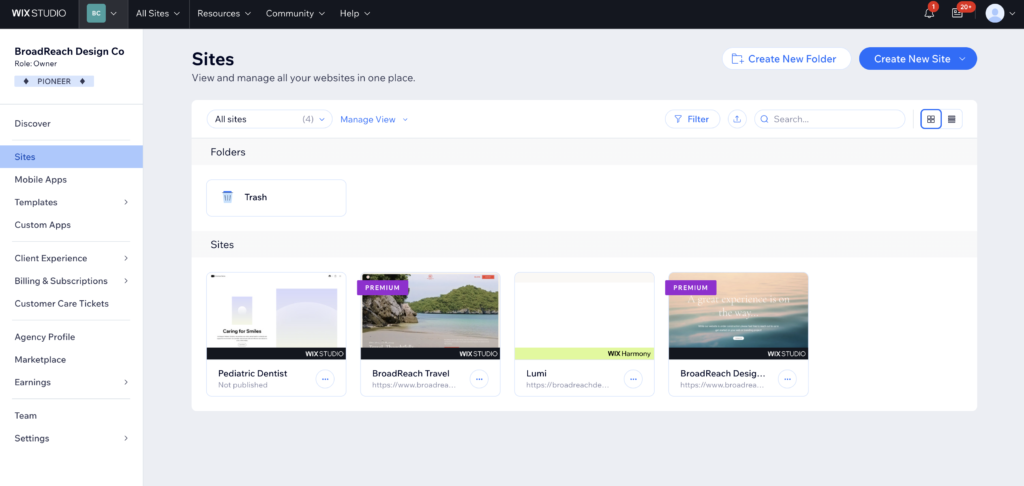
For anyone who found Webflow for beginners too much, Wix is the better choice for most small businesses that want to manage their own site. It has come a long way. Modern Wix handles advanced animations and styling while keeping an interface that does not require any knowledge of CSS or HTML structure. If you need strong business integrations, bookings, ecommerce, or marketing tools in one place, Wix is hard to beat. It is the platform I reach for when a client wants to stay in the driver’s seat after launch. For a closer look at how it stacks up against the design-led option, see our Framer vs Wix comparison.
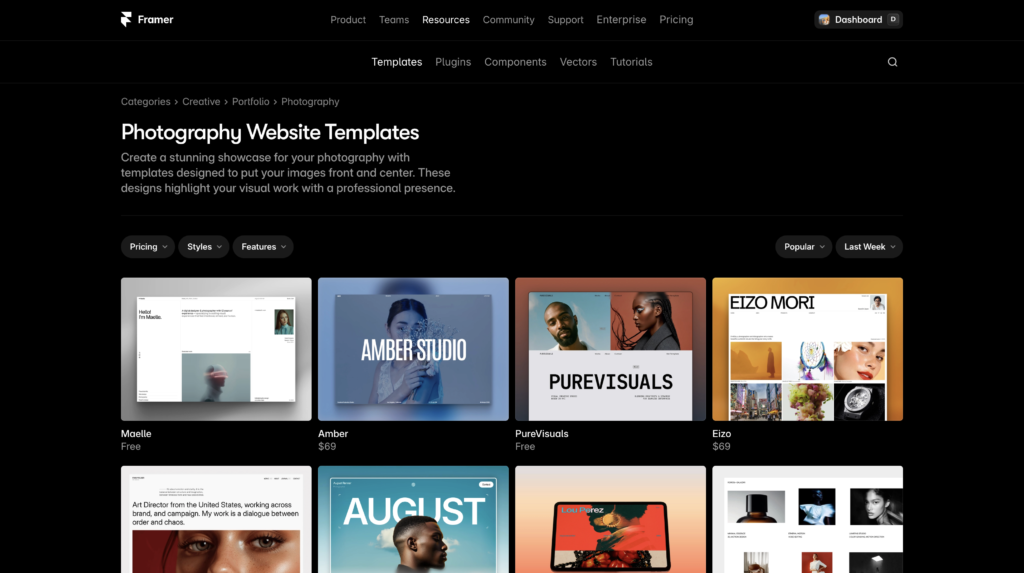
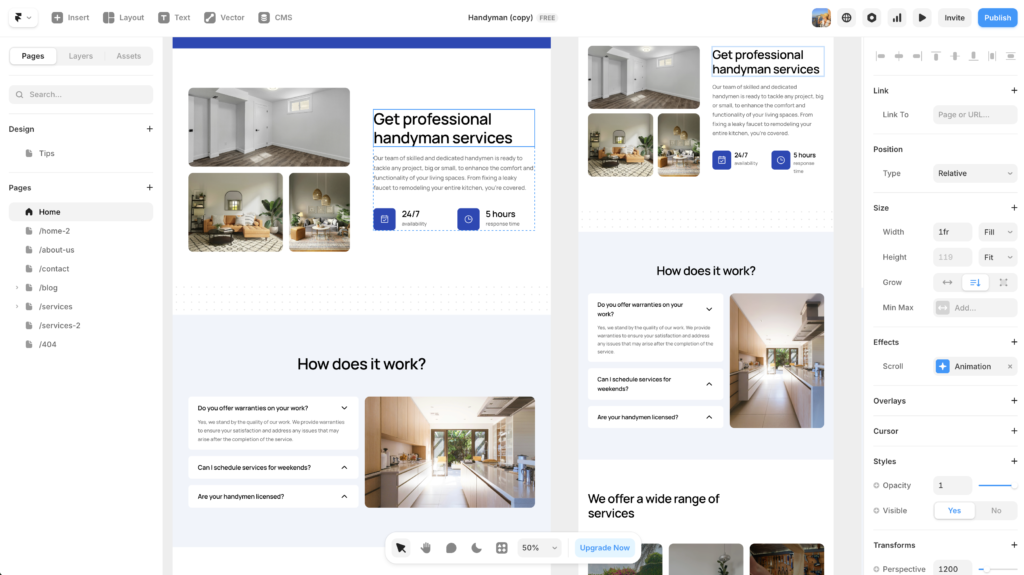
Framer sits in the sweet spot between Wix and Webflow, and it sidesteps most of what makes Webflow for beginners painful. It offers more design flexibility than Wix, though the gap is closing, without being as CSS and HTML focused as Webflow. Framer’s templates tend to look more unique and thoughtful out of the box than typical Wix templates, so if you want something more custom and design-led without the full Webflow learning curve, it is the natural pick. We cover the full lineup in our guide to the best Webflow alternatives for small business. You can try Framer free and see whether the interface clicks for you.
The short version: choose Wix for ease and business tools, choose Framer for design with less friction, and choose Webflow only when full custom control is the actual goal.
Frequently Asked Questions
Is Webflow for beginners actually realistic?
It is possible but rarely advisable. Webflow for beginners means learning website structure, the class and styling system, and a complex editor all at once. Unless you enjoy the design and development side and have time to learn, you will get a professional result faster on Wix or Framer.
Do I need to know how to code to use Webflow?
You do not have to write code, but you do need to understand the concepts behind it. Classes, the box model, and CSS styling are the foundation of the tool. Without that mental model, Webflow for beginners turns even basic edits into a guessing game.
Is Webflow better than Wix for a small business?
For most small businesses, no. Wix gives you a friendlier editor, all-in-one pricing, and built-in business tools. Webflow is better only when you need heavy customization and have a designer building and maintaining the site.
How much does Webflow cost in 2026?
After the May 2026 update, the Basic plan is $15 a month billed yearly and the Premium plan is $25 a month billed yearly or $39 monthly. Costs can climb with bandwidth add-ons, seats, and Workspace plans, so the real total is usually higher than the headline price.
Is Webflow good for SEO?
Yes. Webflow produces clean code, fast hosting, and full control over on-page SEO settings. For a small site, though, Wix and Squarespace cover the same fundamentals with less effort, so Webflow’s SEO strength matters most at larger scale.
The Bottom Line
Webflow is a remarkable tool in the right hands. Webflow for beginners is the wrong frame for it. It is the most flexible mainstream website builder available, and for designers, developers, and agencies building custom work, nothing else compares. But Webflow for beginners is a tough road, and for the average small business owner it solves problems you probably do not have while creating ones you do. Before you commit to learning Webflow for beginners, get honest about what your site actually needs to accomplish. If the answer is a clean, fast site that brings in leads, your money and time are better spent elsewhere. Start with the question of what your website needs to do, and the right tool usually picks itself. If you want a friendlier path, try Framer free and compare it against Wix before you go anywhere near a class panel.
This article contains affiliate links. If you purchase through our links we may earn a small commission at no extra cost to you. We only recommend tools we have personally used or thoroughly researched.